Scan business cards to Excel, Google Contacts and Outlook
Scan a stack of paper cards with your iPhone. Visty reads each one into name, company, phone and email fields, then exports them as a CSV file for Excel or a vCard file for your contacts.
For iPhone and iPad.
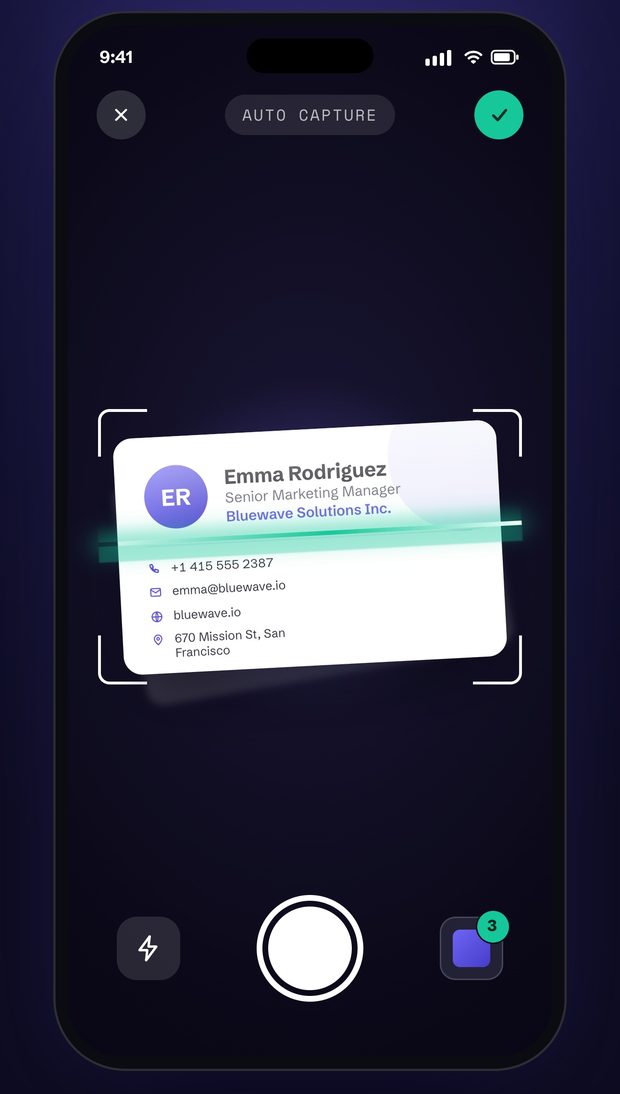
From a stack of cards to a spreadsheet in three steps
Scan the stack
Scan cards one after another and review them together at the end. Add the back of a card when it has more details, or import photos of cards you already took.
Check the details
AI sorts each card into fields: name, job title, company, phone numbers, emails, website and address. Tap any field to correct it.
Export
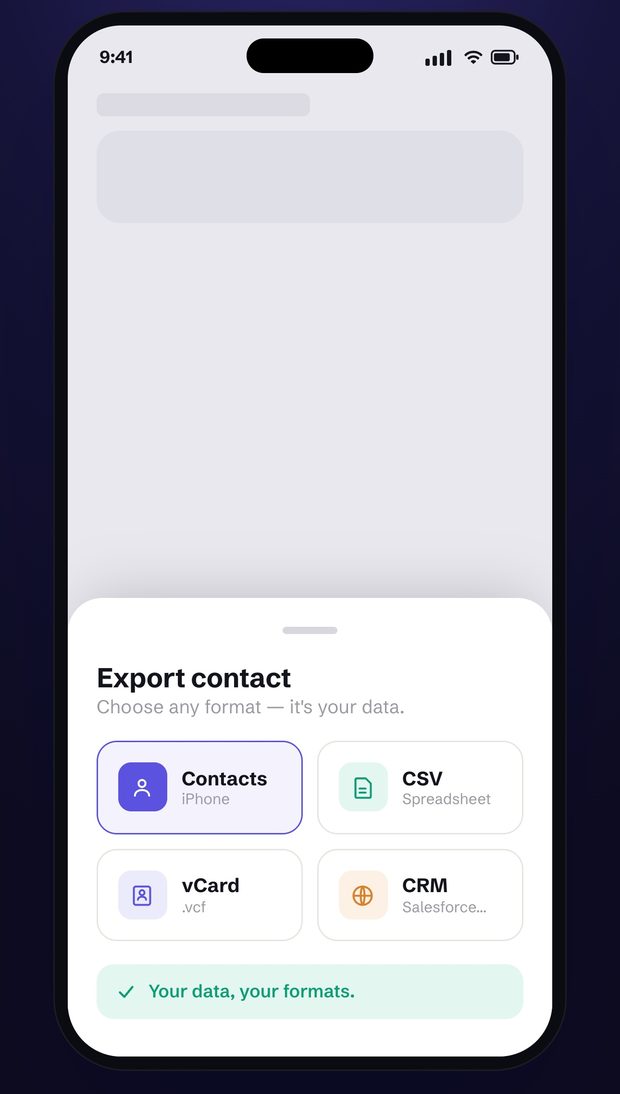
In your card list, open the menu and tap Export…, then choose CSV for Excel or vCard for contacts apps. Send the file to your computer by email, AirDrop or the Files app.
Get your cards where you work
Excel, Numbers and Google Sheets
Open the CSV file: each card is a row, with columns for first and last name, company, department, job title, every phone number, email, website and address.
Names in Japanese or Chinese look garbled in an older Excel? Import the file with Data › From Text/CSV and choose UTF-8.
Google Contacts
In Visty’s settings, set Contacts › Save To to your Google account, and the cards you save to Contacts sync to Google Contacts. Or export a vCard file and import it at contacts.google.com.
Outlook
Set Contacts › Save To to your Outlook or Microsoft 365 account, and the cards you save sync to Outlook. To import a file instead, Outlook reads CSV files in its own column layout: Visty Pro exports that layout, as well as Excel workbooks (.xlsx).
iPhone Contacts
Save one card or a whole folder to Contacts in a tap. Visty looks for a matching contact first, so you can avoid duplicates.
What the CSV looks like
One row per card. The header row uses the same column names in every language.
| First Name | Last Name | Company | Job Title | Phone 1 Value | Email 1 Value |
|---|---|---|---|---|---|
| Alex | Morgan | Acme Inc. | Head of Sales | +1 415 555 0100 | alex@example.com |
| Yuki | Tanaka | Example Co., Ltd. | Product Manager | +81 3 1234 5678 | yuki@example.jp |
| Lena | Schmidt | Muster GmbH | Purchasing Manager | +49 30 1234567 | lena@example.de |
The file has more columns than shown here: phonetic names, department, every phone number, email, website and address, plus notes, tags and dates.
Questions and answers
Can I scan cards on my computer?
Scanning happens in the Visty app on iPhone or iPad; this website doesn’t take uploads. Send the exported file to your computer by email, AirDrop or the Files app.
Does it read Japanese and Chinese business cards?
Yes. Visty reads cards in English, Chinese, Japanese, Korean, Vietnamese and the major European languages, and the CSV keeps every character (UTF-8).
What happens to my cards?
Text recognition runs on your iPhone, and your cards are stored in your Visty account. To sort the text into fields, Visty can use on-device AI; in other cases, such as large batches, the text — never the photo — is processed by Google Gemini. Exported files are created on your iPhone.
More free tools
Email signature generator
A professional signature for Gmail, Outlook and Apple Mail, with an optional Save contact button and QR code.
vCard QR code generator
A QR code that adds you to someone’s contacts in one scan. Download it as PNG or SVG; it never expires.
Virtual background maker
A 1920×1080 background for Zoom, Teams and Google Meet with your name, job title and a QR code.